Dashboards
Why dashboards matter
Using dashboards allows you to build pre-defined searches on your data to always have everything importantjust one click away.
Sometimes it takes domain knowledge to be able to figure out the search queriesto get the correct results for your specific applications. People with the required domain knowledgecan define the search queries once to share them with co-workers, managers, or even sales and marketing departments.
In comparison with saved searches, dashboards include a range of additional features.The main difference is the possibility to define Widget specific search criteria like the query or the time range.Dashboards also support creating multiple tabs for different use cases, displaying the result in a full screen mode and as described sharing with other people.
This guide will take you through the process of creating dashboards and storing information on them.At the end you will have a dashboard with automatically updating information that you can share withanybody or just a subset of people based on permissions.
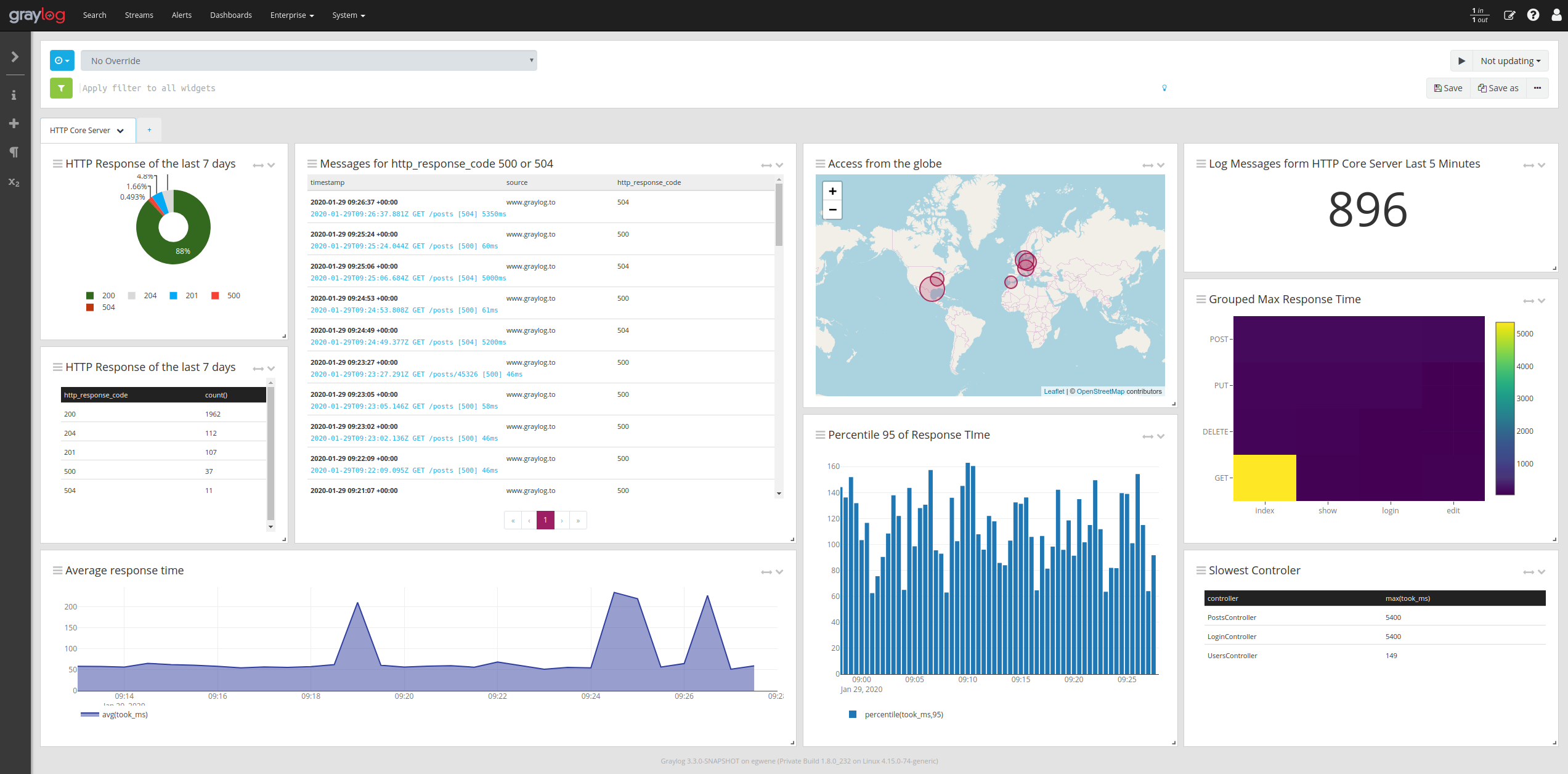
How to use dashboards
Creating an empty dashboard
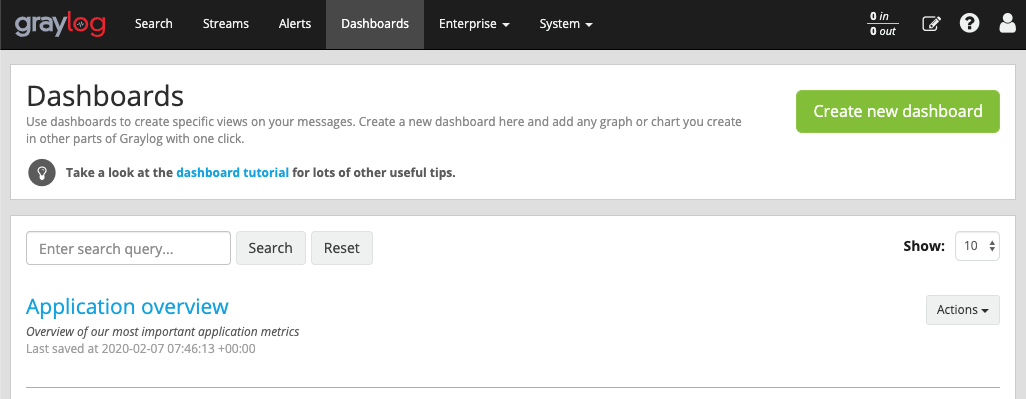
Navigate to the Dashboards section using the link in the top menu bar of your Graylog web interface.The page is listing all dashboards that you are allowed to view. (More on permissions later.) Hit theCreate new dashboard button to create a new empty dashboard.
 You should now see your new dashboard. Hit the Save as button on the right side of the search bar to save the dashboard.
 This will open a modal where you can define a title, summary and description.
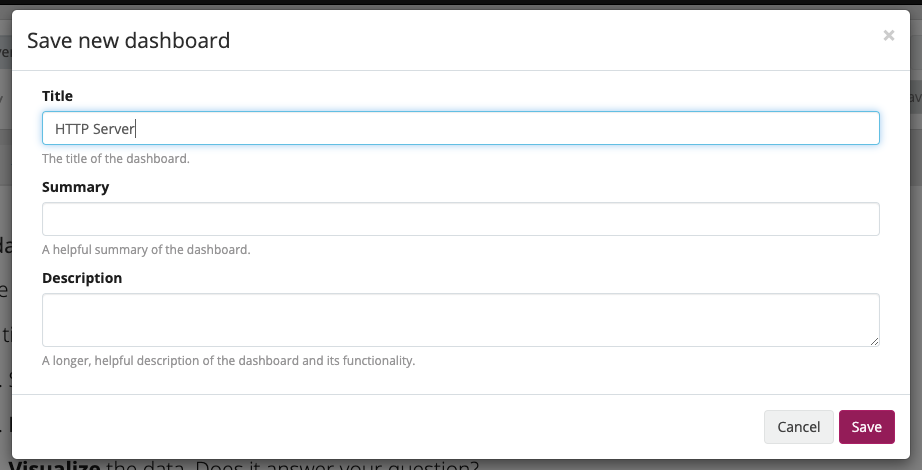 The only required information is the title of the new dashboard. Use a specificbut not too long title so people can easily see what to expect on the dashboard. The description can bea bit longer and could contain more detailed information about the displayed data or how it is collected.
Next, we will be adding widgets to the dashboard we have just created.
Adding and configuring widgets
You should have your empty dashboard in front of you. Let’s add some widgets! You can add search resultinformation to dashboards with a couple of clicks. Adding widgets to a dashboard works the same way like for the main search page.Have a look at the Widgets page for a more detailed description of different widget types and how to create them.
Widget specific search criteria
As described in the introduction the main difference between dashboards and saved searches is the possibility to define widget specific search crtieria.This includes the time range, search query and stream selection.
These options can be defined using the search bar inside the widget edit modal.
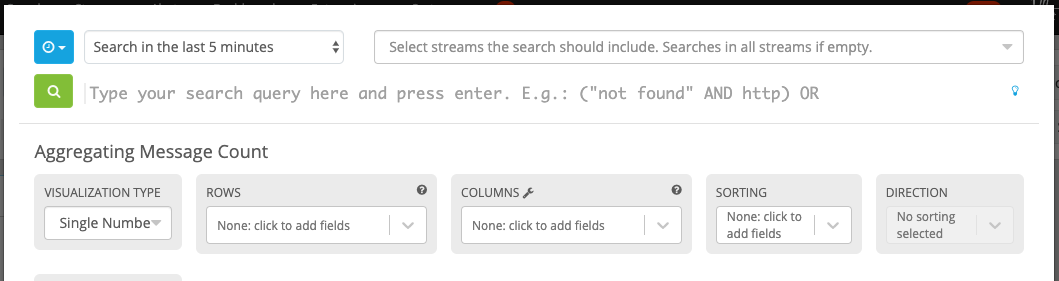 While the main search bar still exists, it only allows to overwrite the widget specific search. While the widget specific search persists,search options configured with the main search bar will not be saved with the dashboard.
Examples
It is strongly recommended to read the getting started guide on basic searches and analysis first. Thiswill make the following examples more obvious for you. For all examples you need to create an empty Aggregation and open the edit modal.
Top log sources today
- Example search:
*, timeframe: Last 24 hours - Select visualization
Data Table - Add row pivot
source - Add metric
count(source) - Select sorting
count(source) - Save the widget
- Example search:
Number of exceptions in a given app today
- Example search:
source:myapp AND Exception, timeframe: Last 24 hours - Select visualization
Single Number - Add metric
count() - Save the widget
- Example search:
Response time chart of a given app
- Example search:
source:myapp2, any timeframe you want - Select visualization
Single Number - Add metric
avg(response_time) - Save the widget
- Example search:
Result
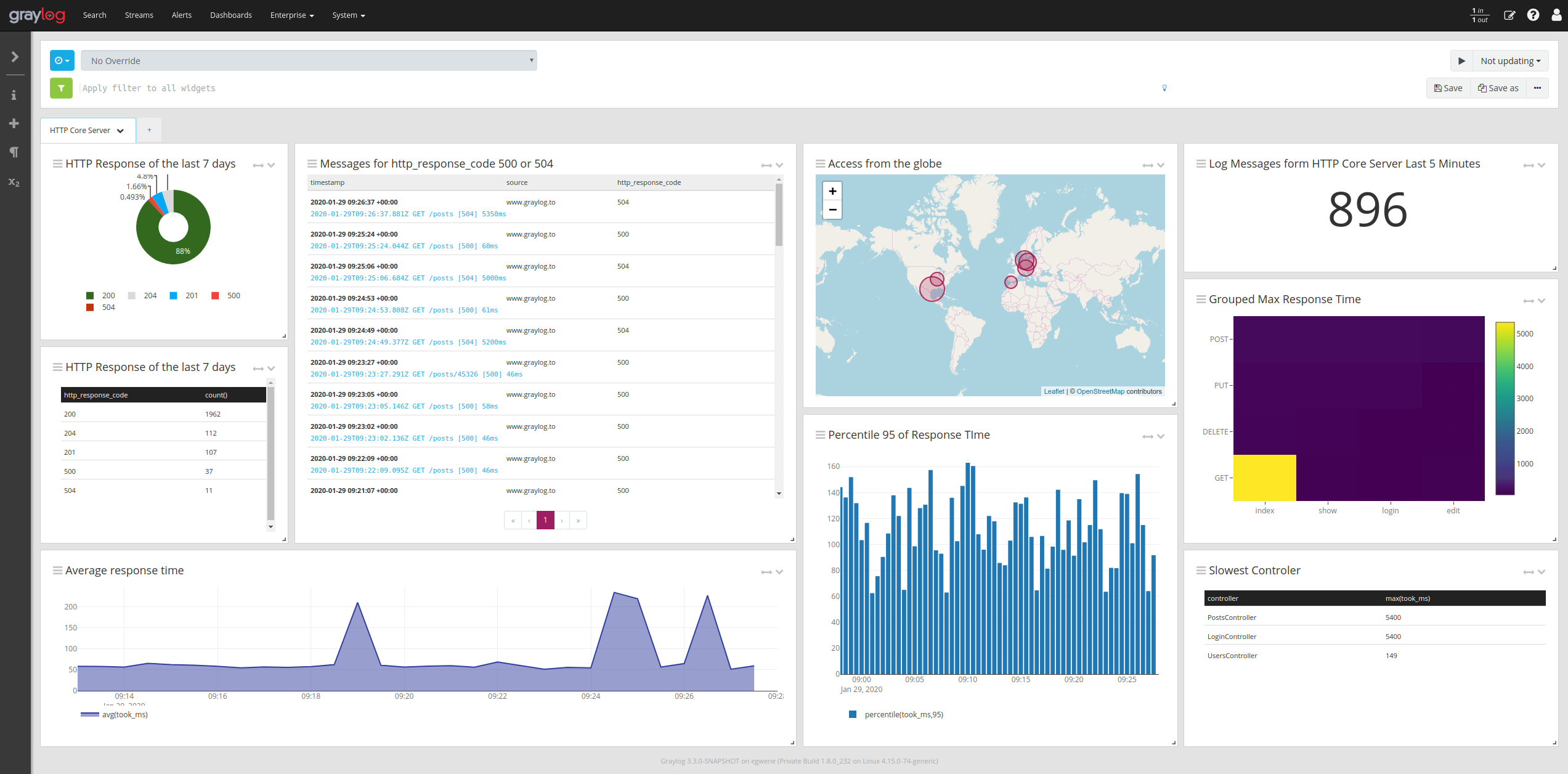
You should now see widgets on your dashboard.
Export a search as a dashboard
the last sections decriped how to create a dashboard from scratch, but you can also transform an existing search to a dashboard.All you need to do is to click on the three dots on the right side of the search bar and select the option Export as dashboard .The newly created dashboard is just a draft and you will need to click on the Save as button to create the dashboard permanently.

Widget cache times
Widget values are cached in graylog-server by default. This means that the cost of value computationdoes not grow with every new device or even browser tab displaying a dashboard. Some widgets might needto show real-time information (set cache time to 1 second) and some widgets might be updated way less often(like Top SSH users this month , cache time 10 minutes) to save expensive computation resources.
Dashboard permissions
Graylog users in the Admin role are always allowed to view and edit all dashboards. Users in the Reader roleare by default not allowed to view or edit any dashboard.
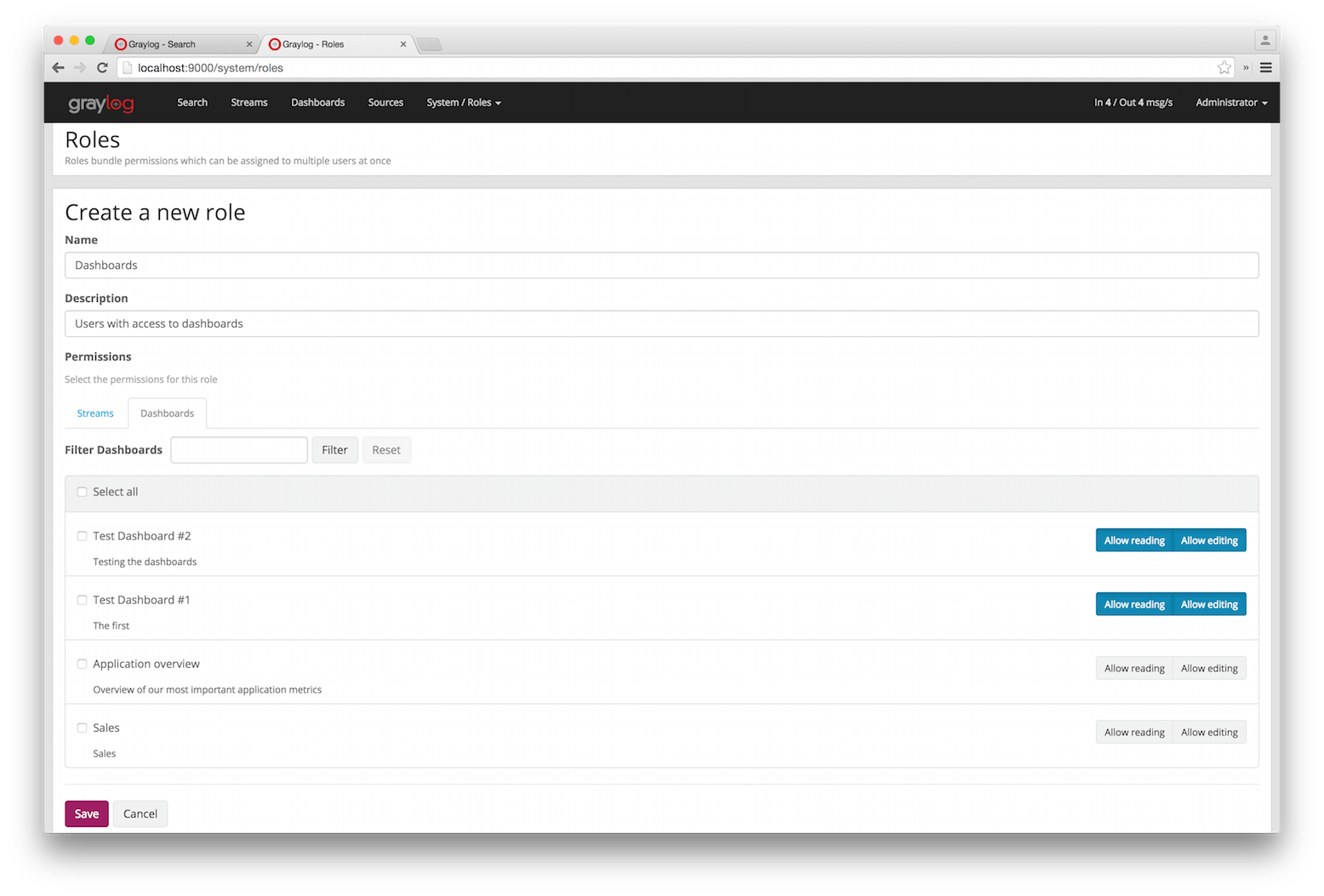 Navigate to System -> Roles and create a new role that grant the permissions you wish. You can then assignthat new role to any users you wish to give dashboard permissions in the System -> Users page.
You can read more about user permissions and roles.
That’s it!
Congratulations, you have just gone through the basic principles of Graylog dashboards. Now think about which dashboardsto create. We suggest:
- Create dashboards for yourself and your team members
- Create dashboards to share with your manager
- Create dashboards to share with the CIO of your company
Think about which information you need access to frequently. What information could your manager or CIO be interested in?Maybe they want to see how the number of exceptions went down or how your team utilized existing hardware better. Thesales team could be interested to see signup rates in realtime and the marketing team will love you for providinginsights into low level KPIs that is just a click away.